Menu Details & Help
Status indicators
Nucleate hub status


| Status | Nucleate Behavior |
|---|---|
| Disabled | Disabled and idle |
| Enabled | Enabled and watching for new files |
| Processing | Actively transcribing, summarizing, or uploading (if OpenAI) |
| Downloading | Downloading an Ollama LLM or transcription model |
Tray status status




In-app panels
Hub
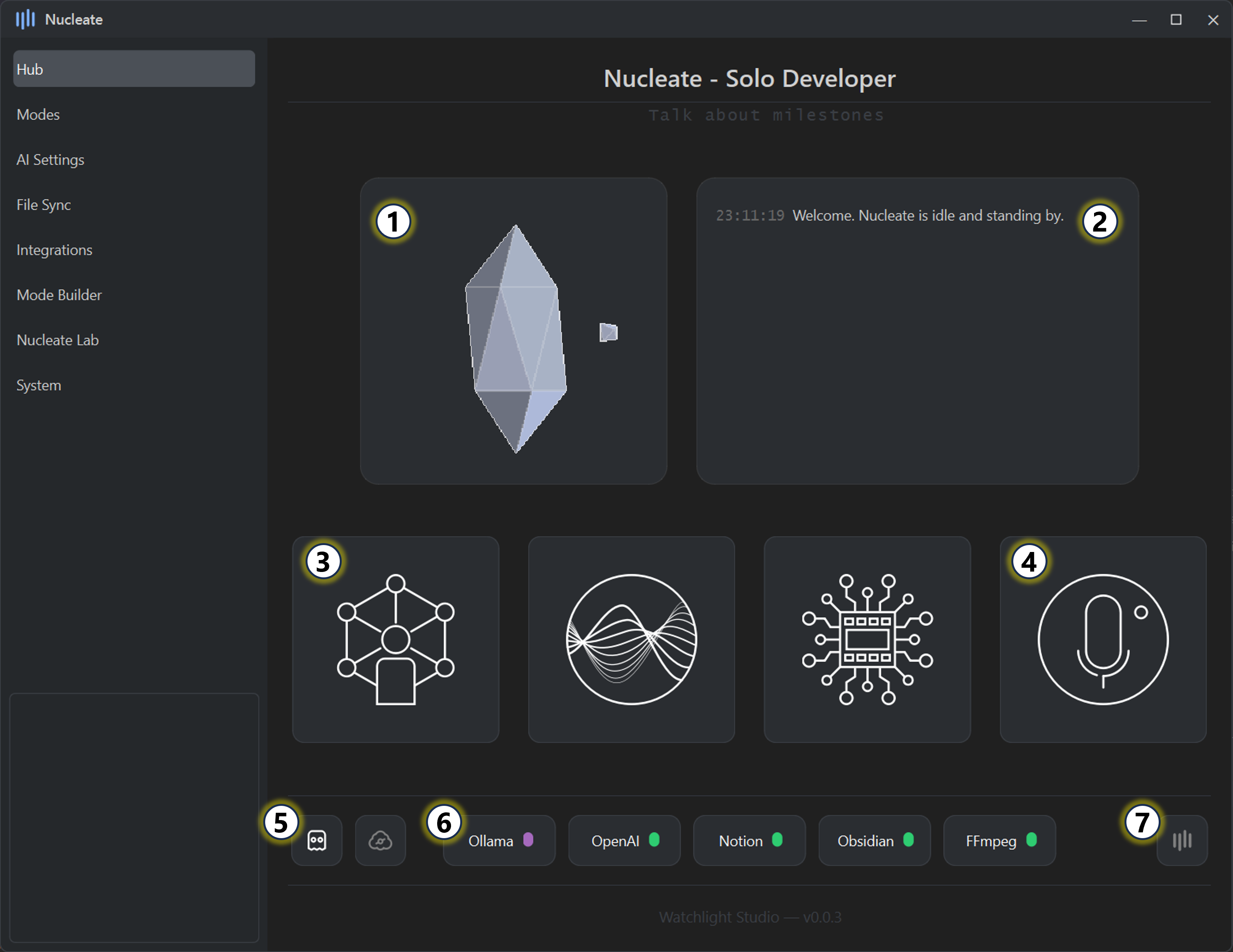
Hub Overview
The Hub is your central dashboard in Nucleate, providing status, control, and quick access to key settings.
Enable Nucleate
- Click a card to enable or disable automatic services.
- Status indicators show whether each service is active, idle, or using OpenAI.
Message Board
- Displays key events, alerts, and messages from Nucleate.
- Provides real-time updates on processing, errors, and completed tasks.
Quick Access Cards
- Navigate directly to User Mode Settings, AI Settings, or Ollama Models.
Recording Controls
- Start or stop in-app recording.
- Maximum recording: 30 minutes for Lite users, unlimited for Pro users.
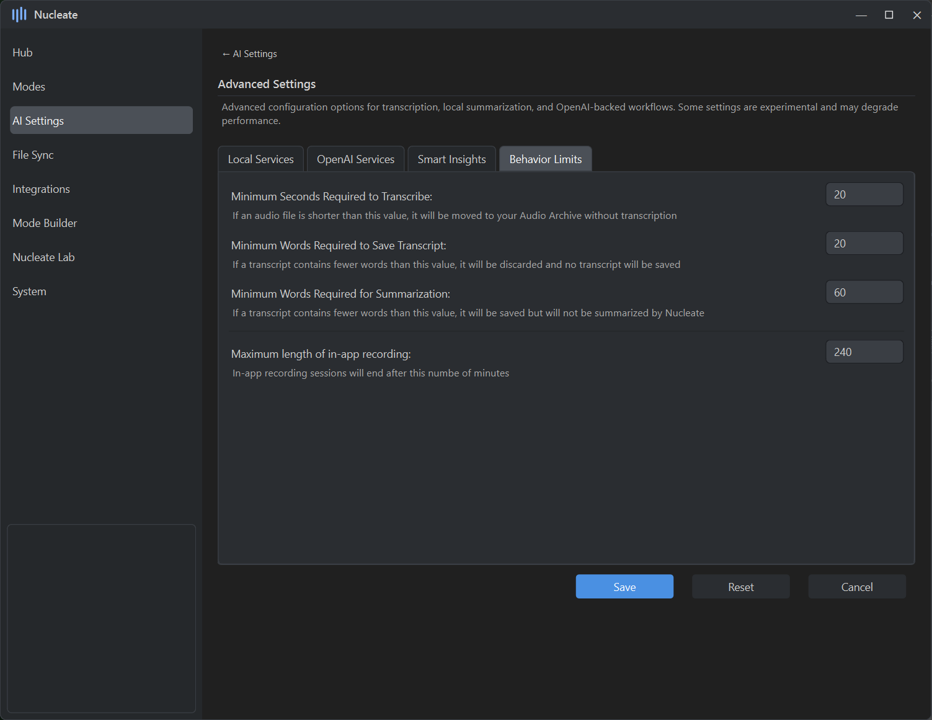
- Adjust maximum limits in AI Advanced Settings.
Service Status Indicators
- Shows whether Nucleate is operating fully locally (private) or using OpenAI APIs.
Third-Party / Integration Status
- Check connectivity and status for integrated services like Notion or OpenAI.
Tray Behavior Toggle
- Keep Nucleate running in the system tray when the main GUI is closed.
Modes
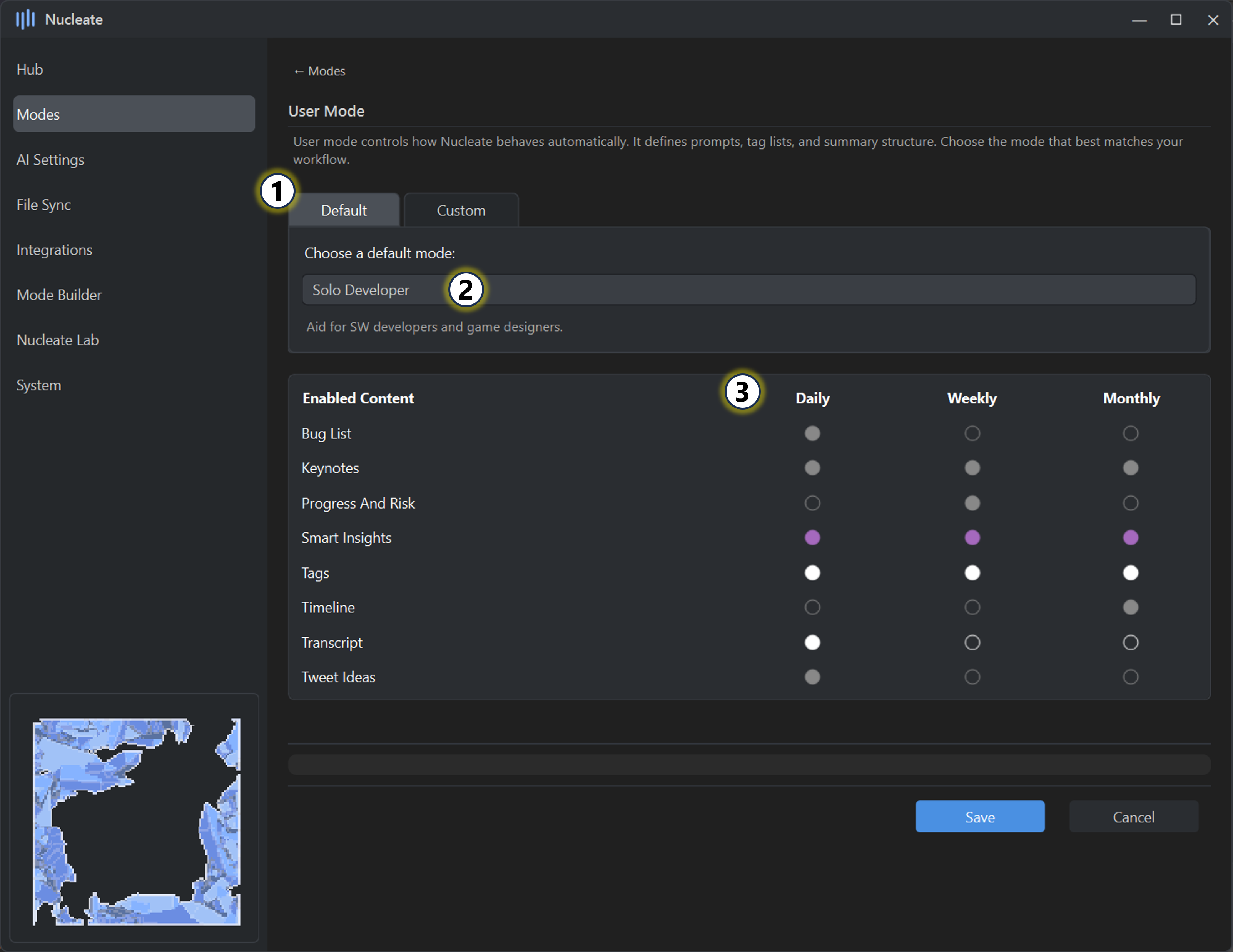
User Modes
Select, customize, and fine-tune how Nucleate interprets your audio. Switch between Default and Custom modes, edit which Insights are enabled, and control tagging and transcript behavior. Advanced users can adjust daily, weekly, and monthly preferences to create a workflow tailored to your needs.
Mode selection
Choose between Default and Custom modes. Modes created via the Mode Builder appear under the “Custom” tab.Pick a mode
Select a specific mode from the dropdown menu. A description of the selected mode is shown below.Enabled content
View the content enabled for the selected mode. Adjust which items are active via Mode Preferences.- Smart Insights automatically override other Insights.
- Tags and Transcripts are always enabled.
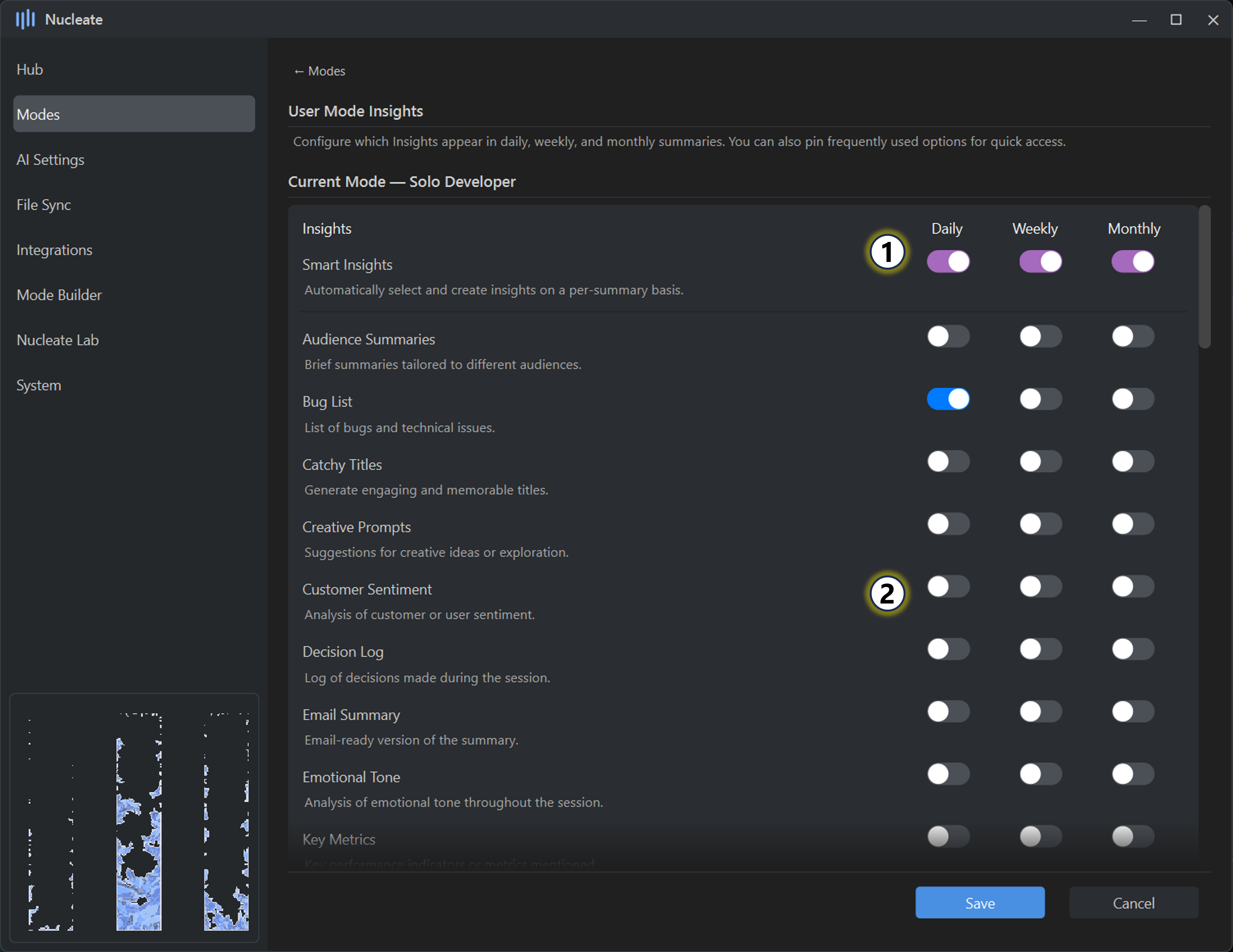
Mode Insights
Favorite Insights
Favorites appear at the top of the list. Right-click to add or remove items.Enable Insights
Choose which Insights are applied to Daily, Weekly, or Monthly summaries. Smart Insights will override other selections. Tags and Transcripts remain enabled regardless.
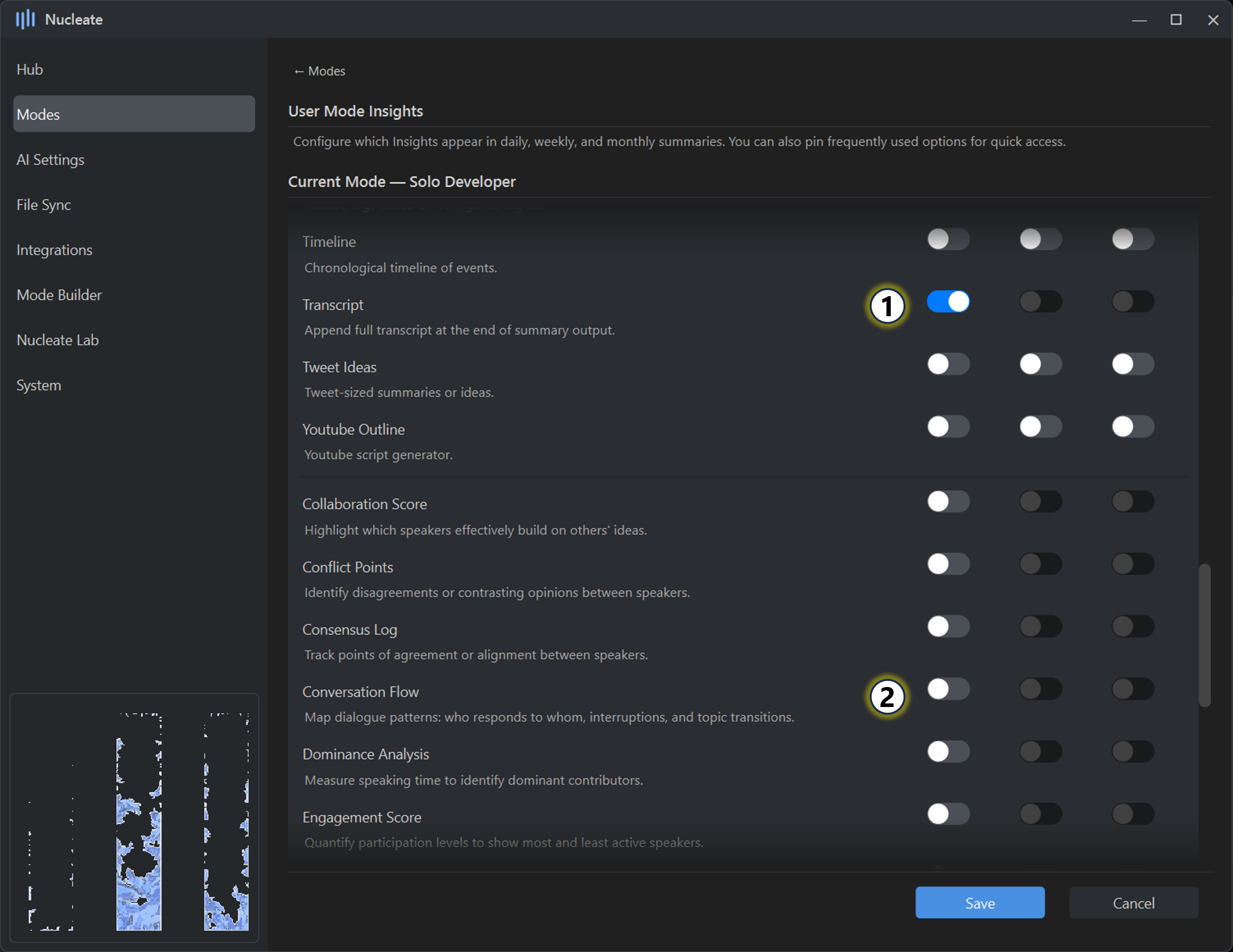
Transcripts
Optional for Daily summaries. Weekly and Monthly summaries digest Daily content, so transcripts remain disabled.Diarized Insights
Require Speaker Detection in AI Settings. Available only for Daily summaries, since diarized transcripts are needed.
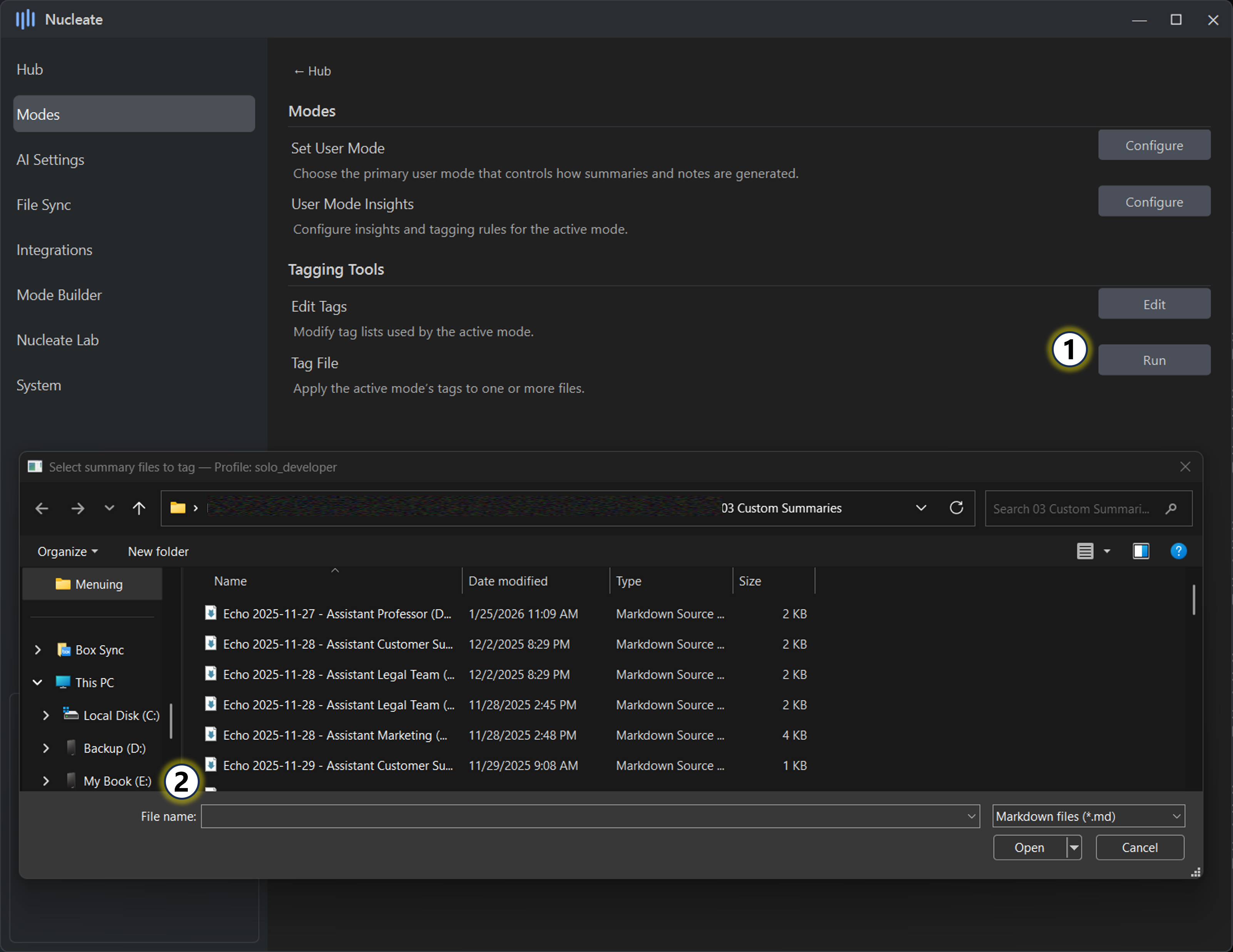
Tagging Files
Apply tags
Tag any markdown file using the active user mode’s tag list.Batch selection
Select one or multiple files to automatically apply the current tags.
AI settings
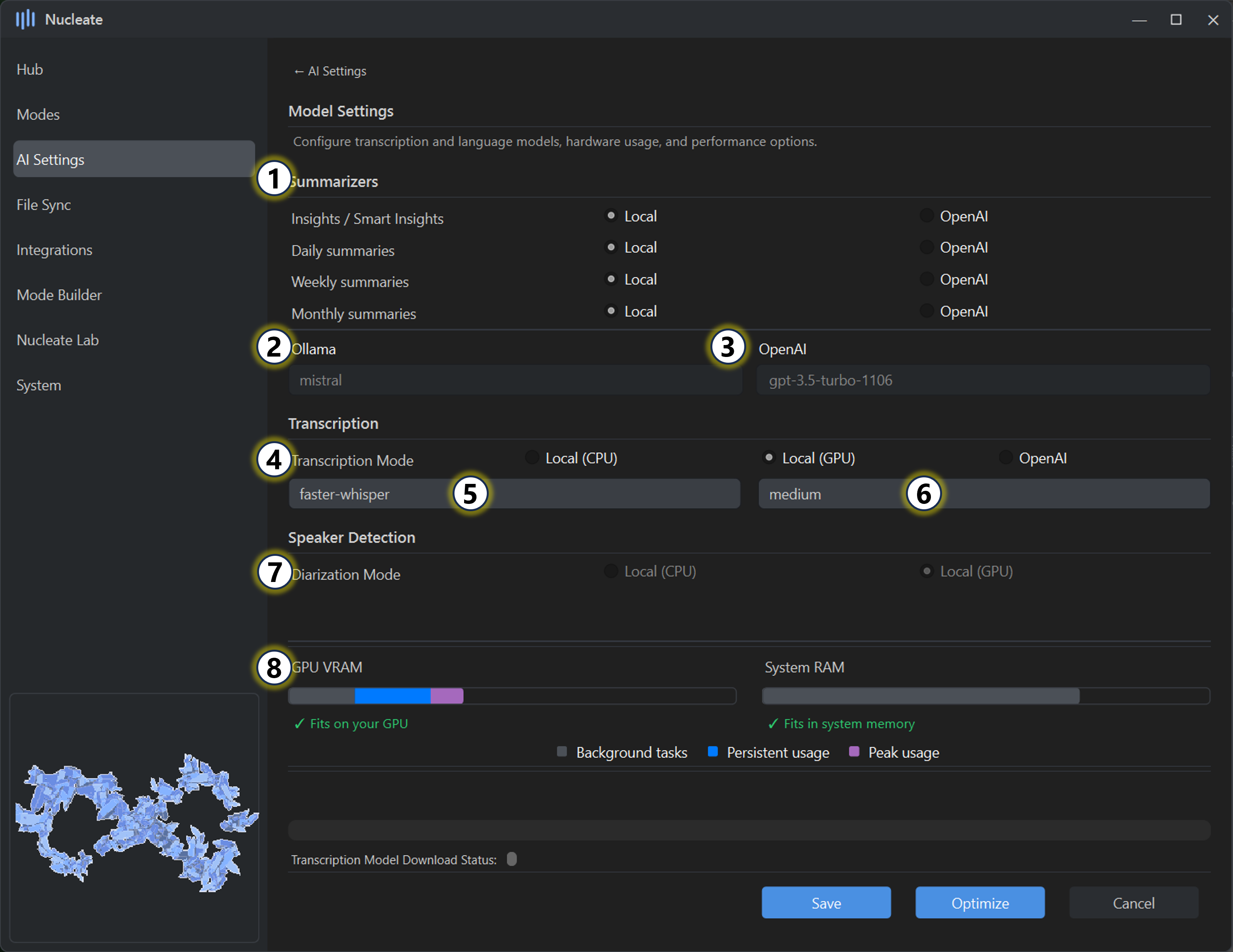
AI / LLM Settings
This panel controls how Nucleate performs summarization, transcription, and speaker detection, and how those workloads are split between local hardware and OpenAI services.
Settings here are adaptive: available options update automatically based on detected hardware, enabled features, and selected backends.
Summarization services
- Each summary type can be configured to use either:
- Local models (Ollama), or
- OpenAI API services
- You can freely mix local and cloud summarization depending on your workflow
- Each summary type can be configured to use either:
Local summarization
- Uses the currently selected Ollama model
- The active model is shown here for reference
- To change models, see Ollama Backend settings
OpenAI summarization
- When at least one summarizer is set to OpenAI, additional options become available
- Select from predefined OpenAI models or enter a custom model name manually
ℹ️Local summarization is fully offline and private. OpenAI summarization uploads text to OpenAI’s servers and incurs usage-based costs.Transcription services
- Choose how audio is transcribed:
- CPU
- GPU / MPS (hardware accelerated)
- OpenAI
- Available options are restricted automatically based on detected hardware
- Choose how audio is transcribed:
Transcription backend
- Faster-Whisper (recommended for most users)
- Optimized for speed and efficiency
- Best choice for Windows and CPU-based workflows
- Whisper
- Preferred on Apple Silicon Macs due to native Metal acceleration
- Faster-Whisper (recommended for most users)
Transcription model
- Select from available Whisper model sizes
- Medium is recommended by default when adequate hardware is detected
- Larger models improve accuracy but require more RAM/VRAM and time
ℹ️Because Nucleate performs summarization on transcripts, minor transcription errors are often corrected or ignored during analysis. Medium-sized models typically provide the best balance.OpenAI transcription
- Uses OpenAI’s Whisper API
- Audio files are uploaded to OpenAI for processing
⚠️OpenAI transcription can become expensive for long recordings or large backlogs.Diarization (speaker detection)
Select diarization compute:
- CPU
- GPU (when supported)
Diarization is not compatible with OpenAI transcription
To enable these options:
- Ensure Speaker Detection is enabled in the AI Settings panel
Live memory & hardware state
Real-time visibility into system resources:
- VRAM / Unified Memory (Apple Silicon)
- System RAM
- Memory usage unrelated to Nucleate is shown in grey
Usage indicators
- Persistent usage reflects loaded Ollama models (when Overdrive is enabled)
- Peak usage represents additional memory allocated during:
- Transcription
- Diarization
- Ollama inference (when models are not pinned in memory)
These indicators help you understand performance limits, diagnose slowdowns, and tune model selection for your hardware.
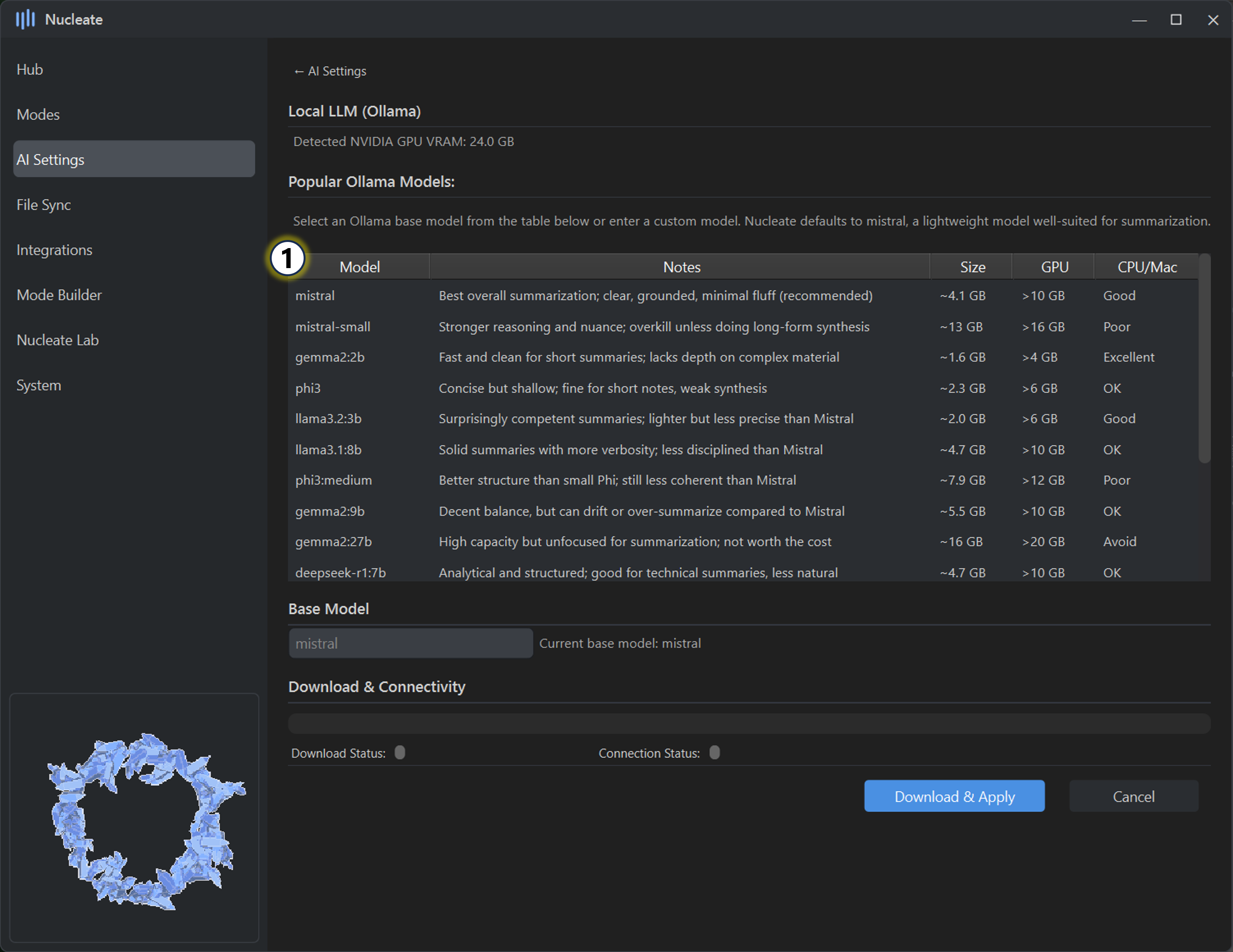
Ollama Model Selection
This panel controls which Ollama model Nucleate uses for local summarization and analysis.
Nucleate ships with a curated list of preloaded model selections, and also allows you to specify a custom Ollama model name if you want to experiment or bring your own.
- Model selection
- Choose from detected local models or select a recommended model from the preset list
- You may also enter a custom model name manually (for example:
deepseek-r1,mixtral,llama2, etc.) - Custom entries must exactly match a valid model listed on the Ollama model registry
Model detection & status - Nucleate checks Ollama connectivity in real time - The status indicator shows: - Whether Ollama is reachable - Whether the selected model is installed locally - Whether the model is valid and usable - If a selected model is not yet installed, Nucleate will prompt before downloading it
Downloads - Model downloads are handled directly by Ollama - Third-party downloads always require explicit user approval - Download progress and completion status are surfaced in the UI
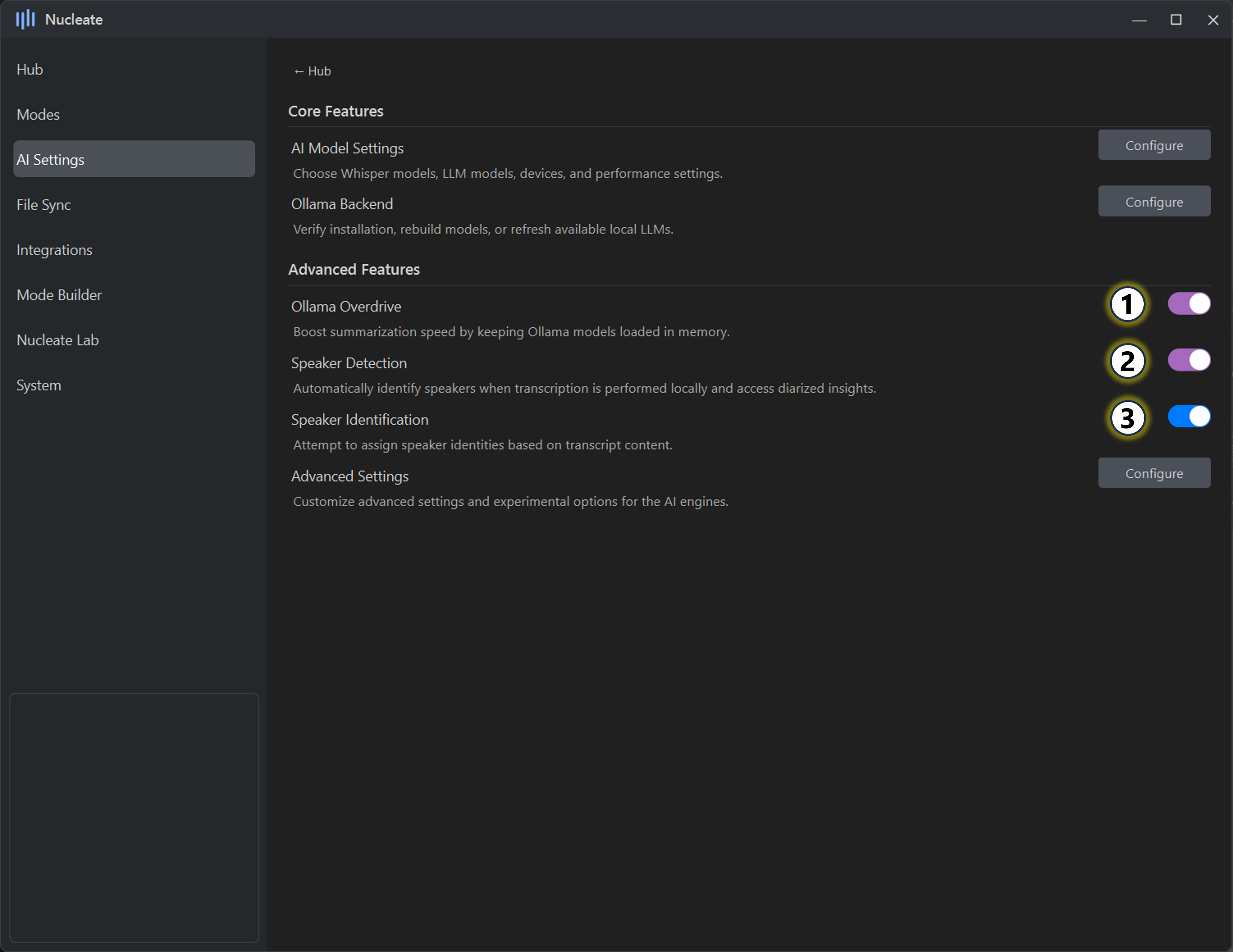
Advanced features
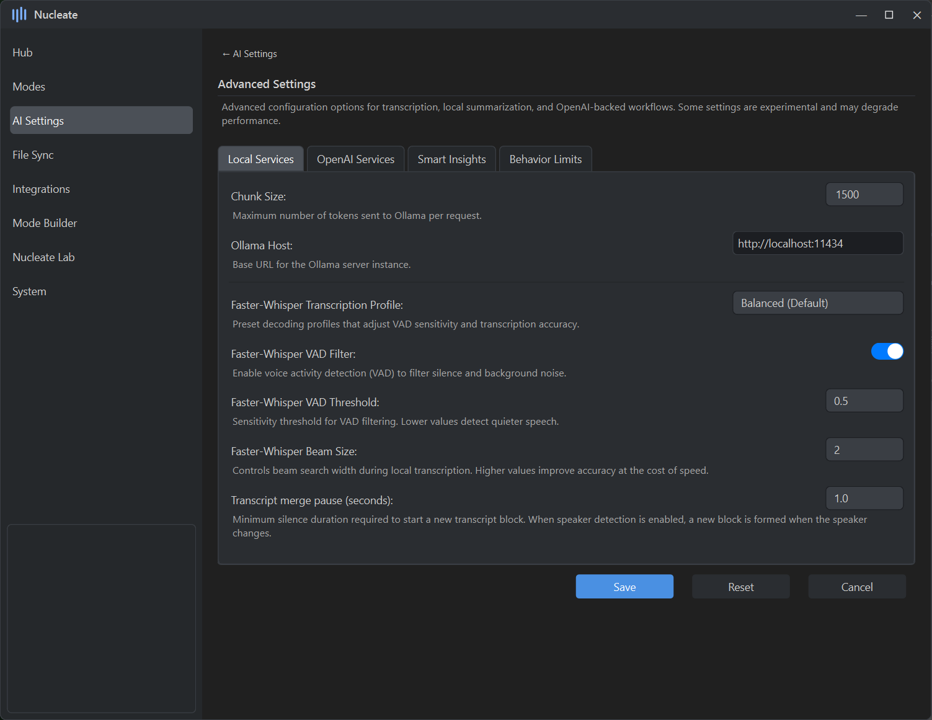
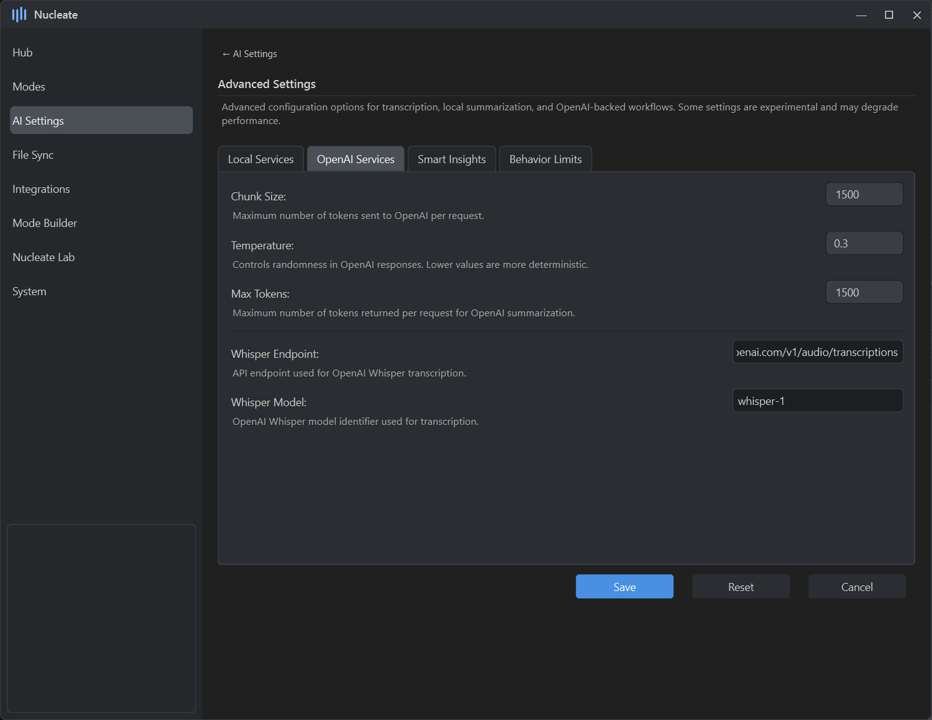
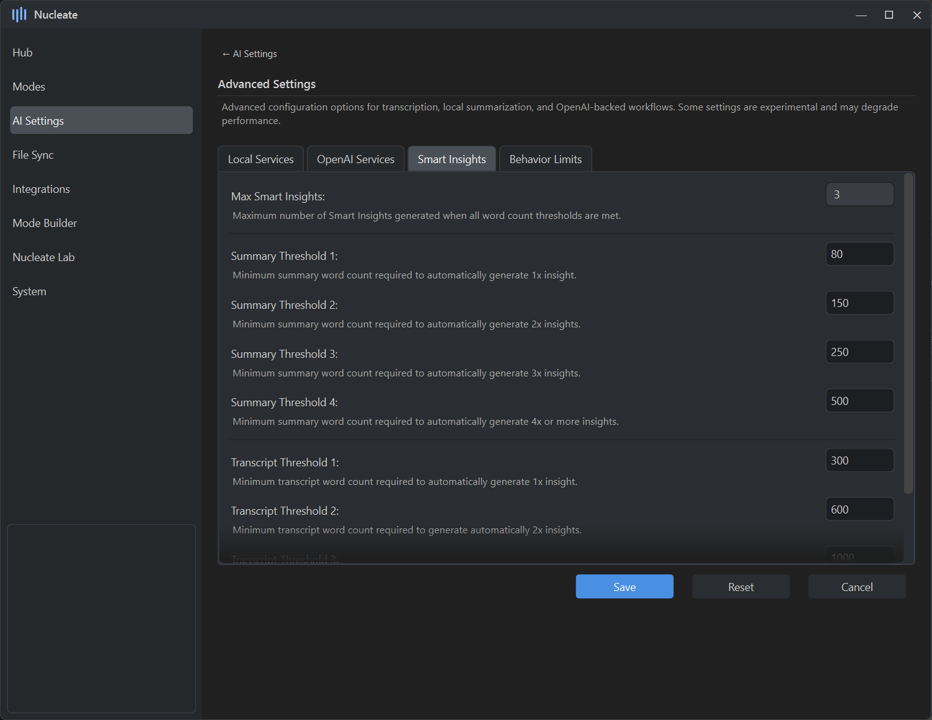
These options provide direct control over Nucleate’s core processing pipeline. They are optional, but can significantly affect performance, output quality, and available features.
Advanced features are available to Nucleate Pro users, provided the system meets the relevant compatibility requirements.
Ollama Overdrive
Ollama Overdrive keeps the active local summarization model persistently loaded in memory (VRAM or system RAM, depending on configuration).
By avoiding repeated model load and unload cycles, Overdrive:
- Reduces overhead between summarization calls
- Significantly increases summarization speed (≈ +50% TPS in many cases)
- Is especially beneficial for frequent, automated, or background summaries
⚠️Ollama Overdrive is not recommended for systems with limited RAM or VRAM. Keeping models resident in memory reduces resources available to other applications.ℹ️When enabled, persistent memory usage will appear in the live hardware monitor.Speaker Detection
Speaker Detection (also known as diarization) is an optional preprocessing step applied after transcription.
During standard transcription, audio is converted to text without speaker context. Speaker Detection analyzes the audio waveform to identify speaker boundaries, allowing Nucleate to determine when different speakers are talking.
When enabled:
- Multiple speakers are detected and separated
- Transcripts are annotated with labels such as:
[Speaker 1],[Speaker 2], etc.
- Diarized transcripts become available for speaker-aware Insights
Speaker Identification
Speaker Identification is an optional post-processing layer applied to diarized transcripts.
While Speaker Detection determines that different speakers exist, Speaker Identification attempts to infer who those speakers are. This process:
- Reviews diarized transcripts using contextual and conversational cues
- Attempts to assign real-world speaker identities
- Applies confidence thresholds before replacing generic labels
If confidence is sufficiently high, labels like
[Speaker 1]are replaced with inferred names.
If confidence is low, generic speaker labels are preserved.ℹ️Speaker Identification only runs when Speaker Detection is enabled. No identities are assigned unless confidence thresholds are met.
Why these settings exist
These features allow Nucleate to scale smoothly from:
- Simple, single-speaker personal notes to
- Multi-speaker meetings, interviews, and lectures
without forcing complexity on users who don’t need it.
Most users can safely leave these settings disabled until a specific workflow requires them.
The panels below are intended for users who want deeper control over how transcription and summarization behave.
File sync
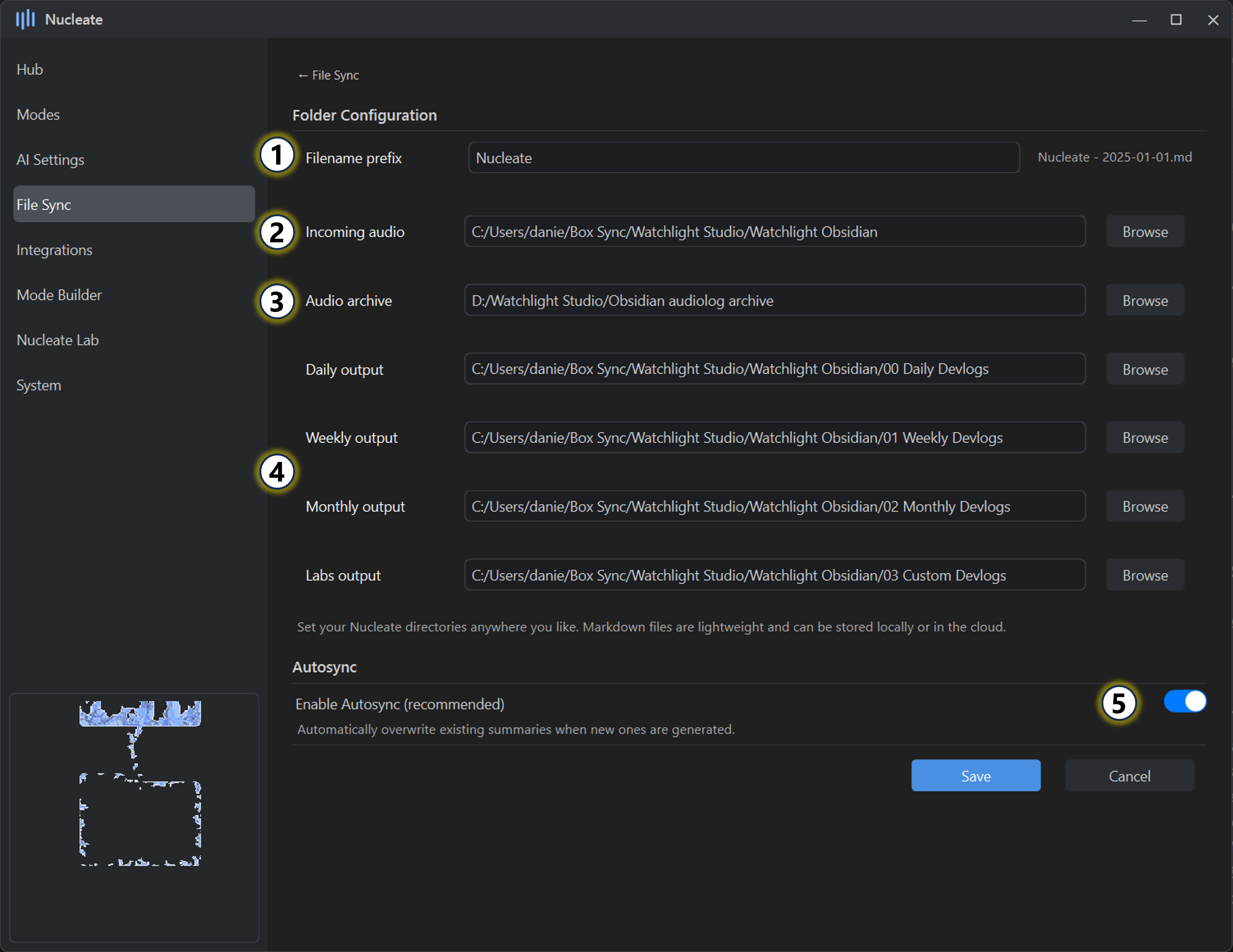
File & folder settings
These settings control where Nucleate reads from, writes to, and how it manages updates across your local folders.
Summary filename
Customize the filename used for generated summaries.
- Changes apply to all future summaries
- Existing summaries in the output folder and Notion database (if configured) are automatically renamed to match
- Useful for aligning with Obsidian conventions or personal naming schemes
Incoming audio folder
The folder Nucleate monitors for new audio files.
- Any supported audio file dropped here is automatically queued
- Folder watching runs continuously while the app is active
- Files are processed in the order they appear
Audio archive folder
The destination for audio files after transcription completes.
- Keeps the incoming folder clean
- Preserves original audio for reprocessing or auditing
- Recommended: use a backup drive if storage is a concern.
Summary output folders
Define where Nucleate writes generated summaries.
- Separate folders can be assigned per summary type
- A single folder may be reused for all outputs if preferred
- Fully compatible with Obsidian vaults and plain Markdown workflows
ℹ️The summary type in Notion is determined by the folder path. If Notion integration is enabled, it is strongly recommended to use separate folders for individual, weekly, monthly, and custom summaries. Using a single folder for multiple summary types may result in “unknown” summary types being reported in Notion.Autosync
When enabled, Nucleate updates existing summaries in place whenever new data becomes available.
- Ensures summaries always reflect the most recent information
- Updates local files and Notion entries (if configured)
⚠️If you manually edit generated summaries, Autosync may overwrite those changes. Disable Autosync if you prefer to treat summaries as a starting point rather than a living document.
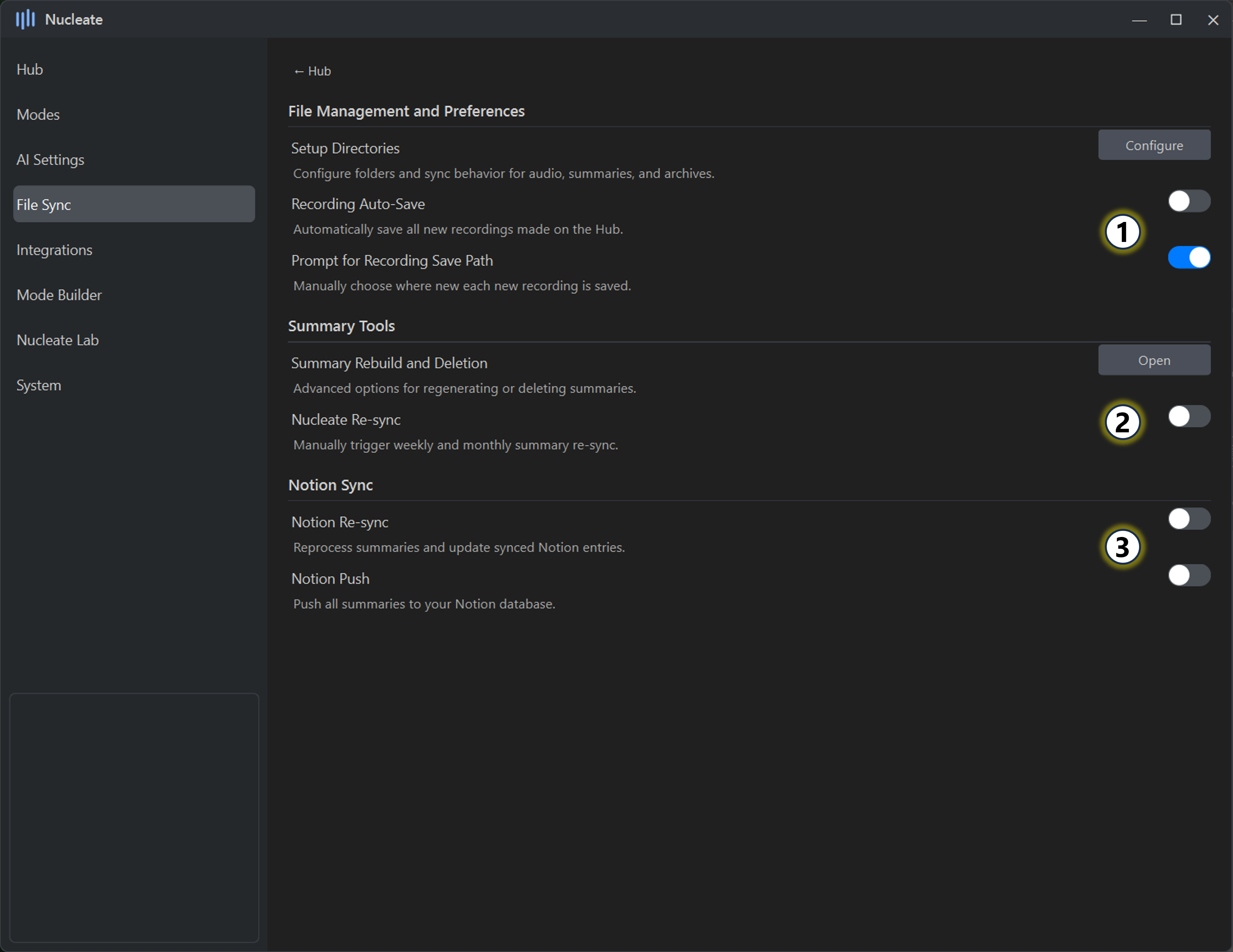
File Sync Settings
Manage recording saving properties, as well as synchronization of linked services.
Recording Save Behavior
Controls how in-app recording sessions are saved and ingested.
- Auto-Save (Recommended)
Automatically saves recordings to the Incoming Audio folder when recording ends. Files are immediately ingested by the Nucleate core process. - Prompt for Recording Save Path
Prompts for a save location at the end of each recording, allowing recordings to be stored outside the default folder.
- Auto-Save (Recommended)
Nucleate Re-Sync
Forces an immediate refresh of long-range summaries.
- Retriggers weekly and monthly summaries on demand
- Normally checked automatically once per hour
- Useful after bulk edits, config changes, or manual file updates
Notion Sync Controls
Synchronizes local summary output with your connected Notion database.
- Notion Re-Sync
Lightweight sync that updates existing Notion entries with current local summary content. - Notion Push
Forces a full rebuild of the Notion database from local summary files.
⚠️Both actions may overwrite user-edited content in Notion.- Notion Re-Sync
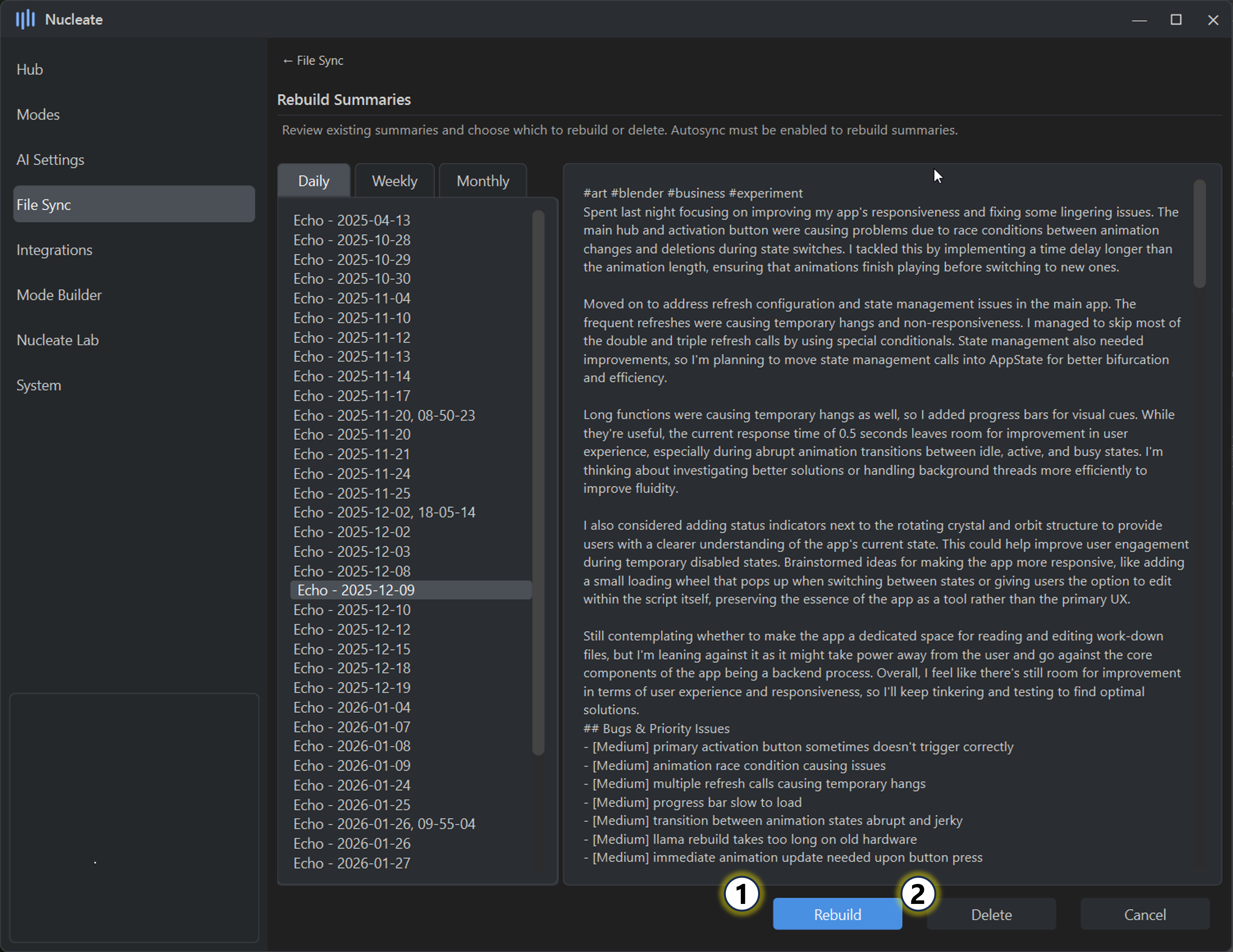
Summary Rebuild
Reprocess or remove existing summaries with full control over content and preferences. Quickly rebuild a Daily, Weekly, or Monthly summary using the currently selected user mode and Insights, or safely delete transcripts and summaries without affecting original audio.
Rebuild Summary
Regenerates a selected summary using the current user mode, Insights, and preferences.
- Select a summary from the tabbed menu
- Click Rebuild to regenerate content
- If Autosync is enabled, the rebuilt summary is pushed to all synchronized folders
Delete Summary
Permanently removes a summary and its supporting transcript.
- Select a summary from the tabbed menu
- Click Delete to remove:
- The summary
- The associated transcript
- Content will not be rebuilt
- The matching summary file in user folders can be safely deleted
- The original audio file is preserved in the Audio Archive
Integrations
### IntegrationsNucleate integrates with third-party services to extend transcription, summarization, and note-sync workflows. All integration settings are optional and can be enabled or disabled independently.
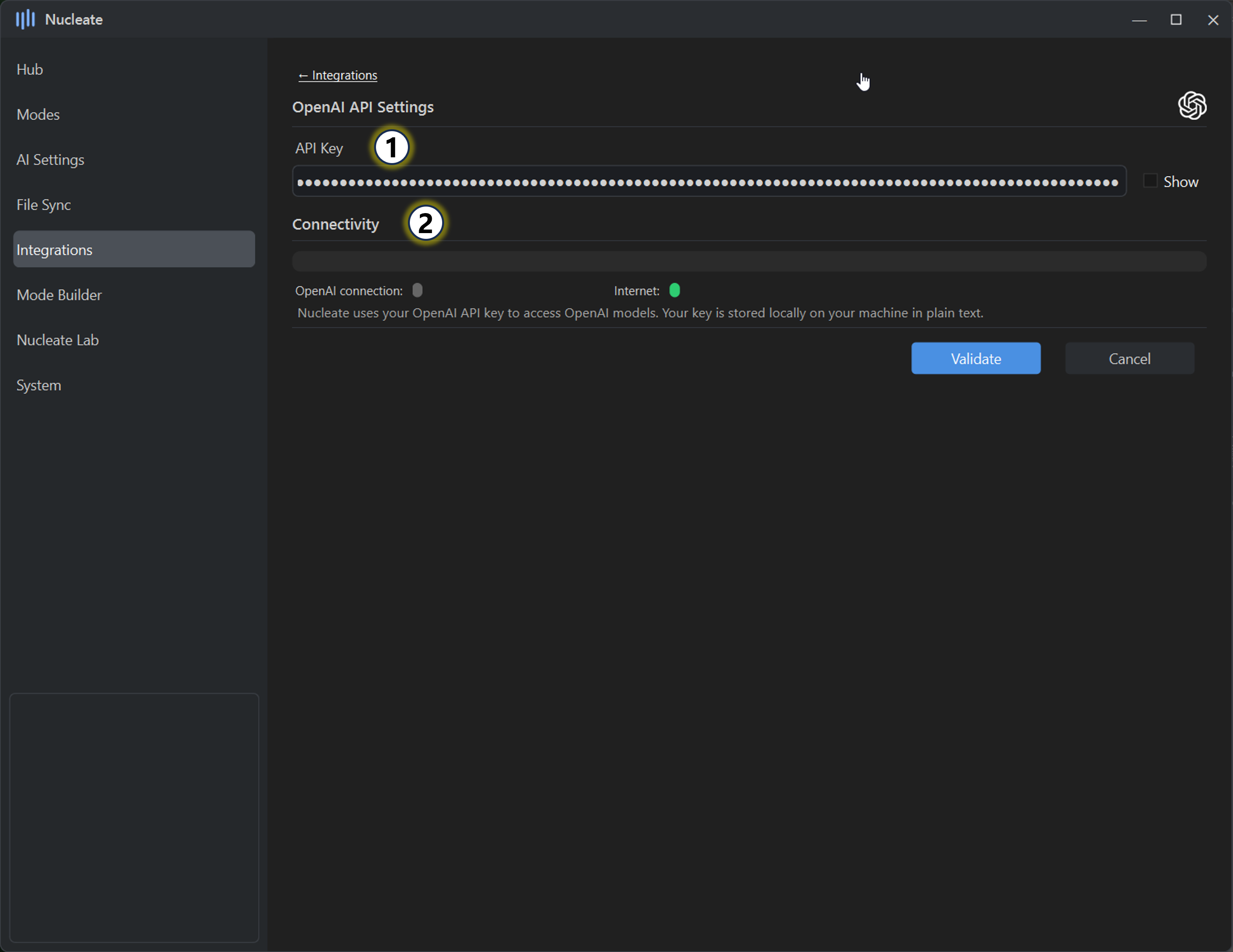
OpenAI API
Configure access to OpenAI-powered transcription or summarization features.
Add a valid OpenAI API key.
The key is stored locally and in plain text.Click Validate to confirm connectivity.
If validation fails, verify:- An active internet connection
- That the key is complete and valid
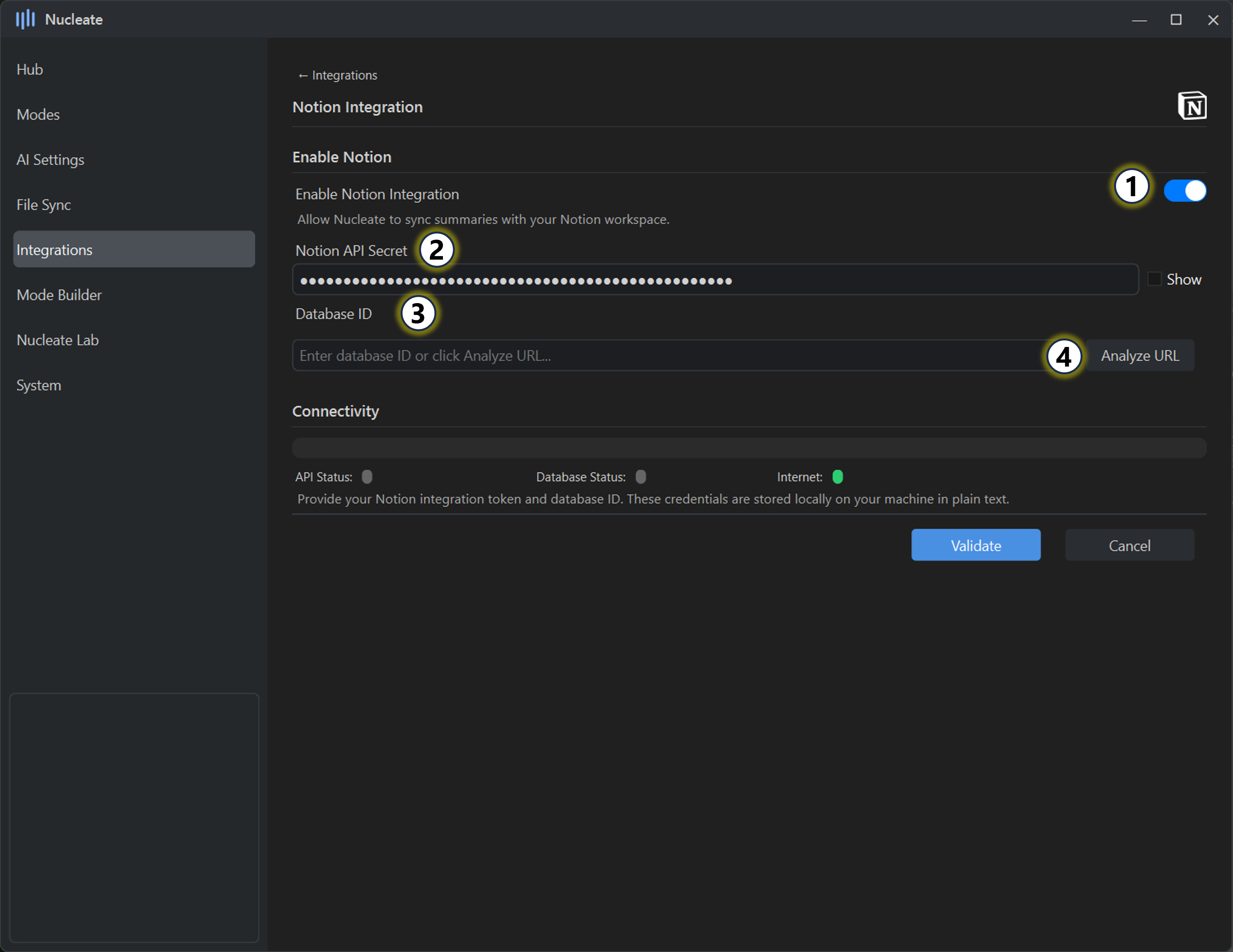
Notion API
Synchronize summaries to a Notion database.
- Toggle Notion Integration on or off.
When disabled, Nucleate will stop syncing to Notion even if credentials are present. - Add a valid Notion API Secret.
The secret is stored locally and in plain text. - Add a valid Database ID.
- If the Database ID is unknown, paste the URL of the database page.
Nucleate will attempt to extract a valid ID automatically.
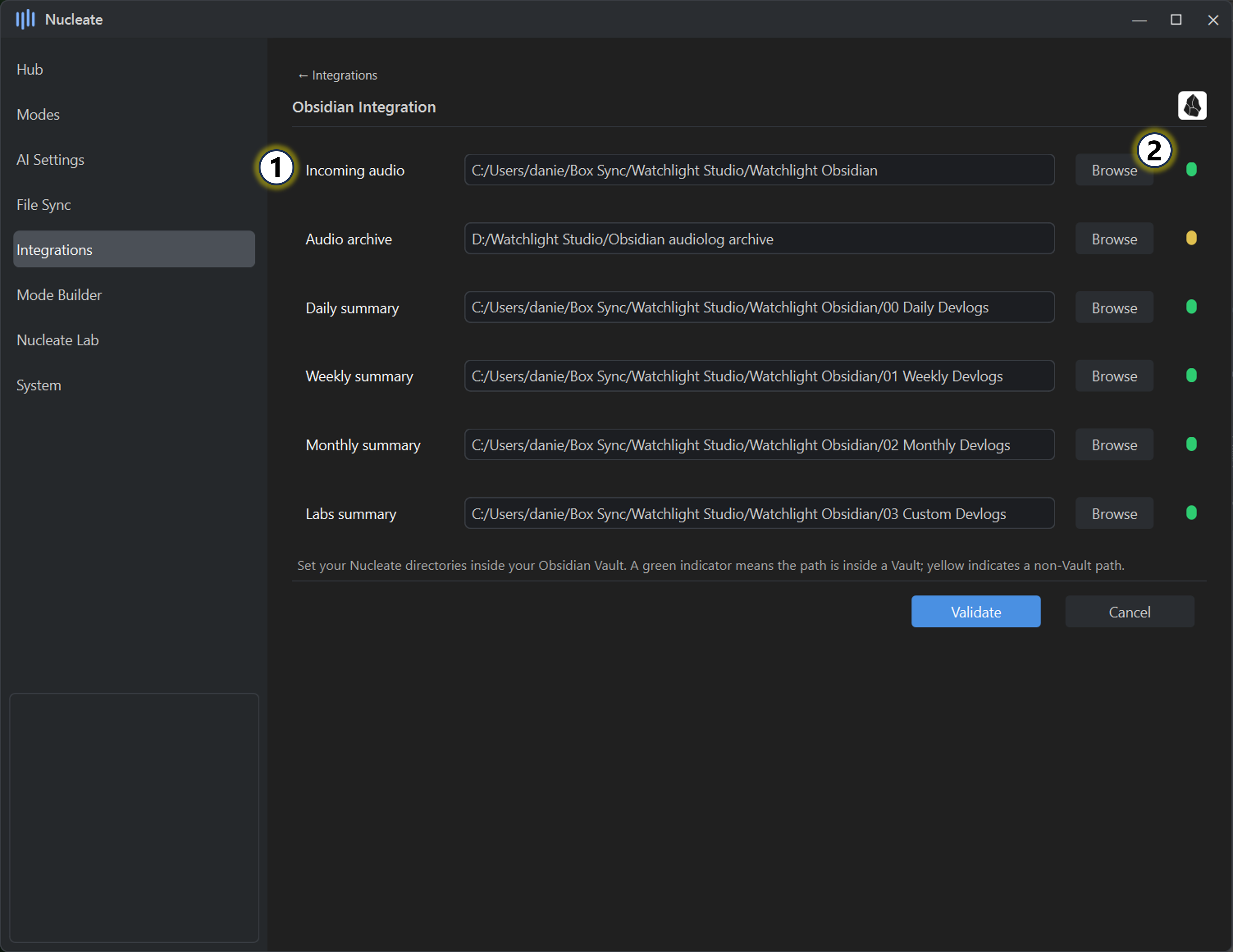
Obsidian
Enable compatibility with Obsidian vaults.
- Define the audio and summary output directories.
These are the same directories configured in the File Sync menu. - The status indicator will report whether the selected directory resides inside a valid Obsidian Vault.
No additional setup is required.
Mode Builder
Mode Builder
The Mode Builder allows you to create, modify, and extend user modes that control how Nucleate summarizes content. Each mode defines prompt structure, system behavior, and default tagging for daily, weekly, and monthly summaries.
This page provides direct access to the prompt layers used by Nucleate’s core summarization pipeline.
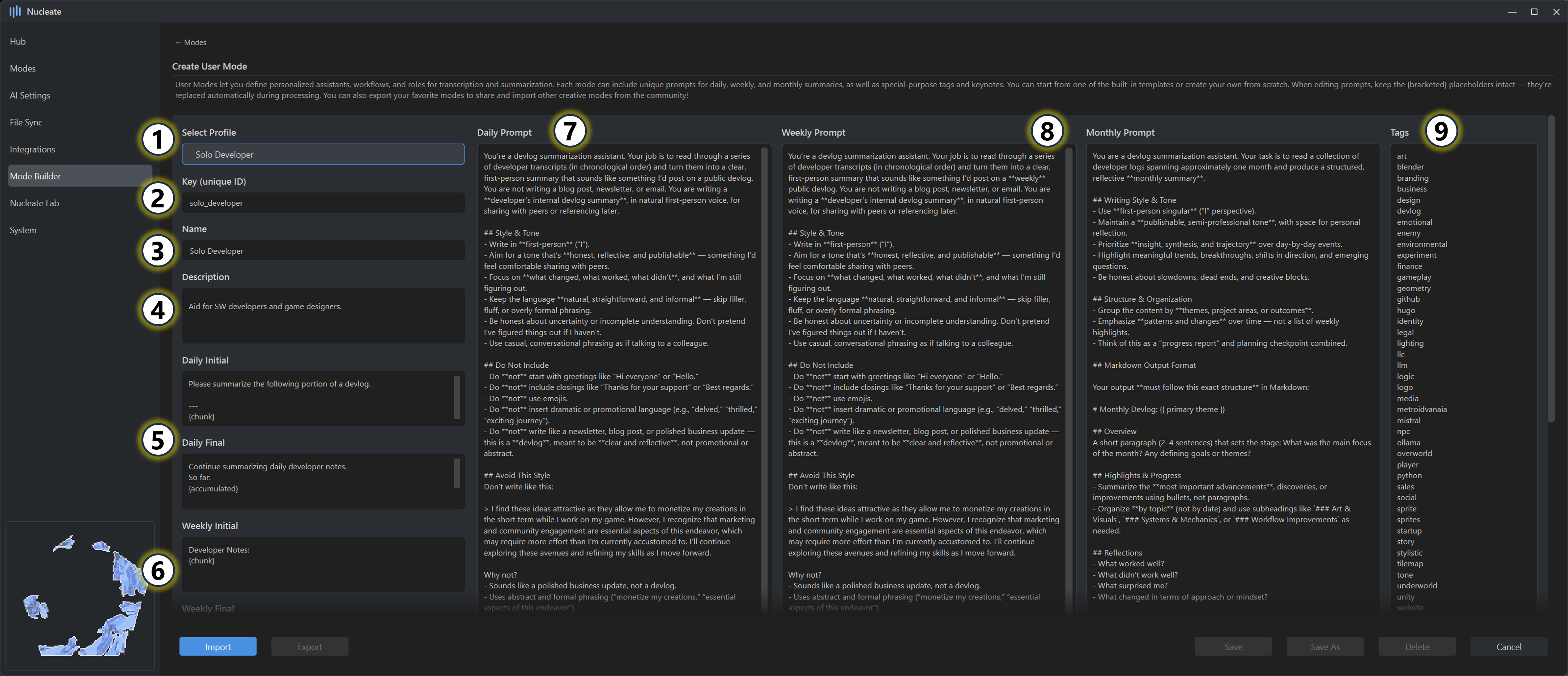
Mode Selection & Identity
Select a base mode
Choose an existing user mode to populate the Mode Builder fields. This is the recommended starting point for creating new modes.Define a unique Mode ID
Each mode must have a unique identifier in order to be saved as a new mode.- Existing modes do not require their ID to be changed
- Custom modes must use a new, unique key
Set the mode name
This is the user-facing name displayed throughout the UI.Set the mode description
A short description explaining the intended use case of the mode.
Daily Summary Prompts
Define Initial and Final prompts (Daily)
These prompts frame how daily summaries are constructed.- The Initial prompt primes the model
- The Final prompt performs consolidation and formatting
ℹ️The bracketed token[chunk]must remain unchanged. This placeholder is dynamically replaced with transcript content during processing.
Weekly & Monthly Summary Prompts
Define Initial and Final prompts (Weekly / Monthly)
These prompts control how content is aggregated across multiple sessions.- Weekly and Monthly prompts may share structure or differ significantly
ℹ️As with Daily prompts,[chunk]must remain unchanged
System Prompts
Define the Daily system prompt
The system prompt governs tone, structure, and behavioral constraints for daily summaries.
It is strongly recommended to use a prefabricated mode as a reference when authoring custom system prompts.Define Weekly and Monthly system prompts
These prompts guide long-form synthesis and higher-level abstraction.
Matching the structure of existing modes will generally produce more consistent results.
Tags
Define the initial tag list
Tags are applied automatically to generated summaries.- One tag per line
- Single-word tags only
- No punctuation
Tags can be modified at any time from either the Mode Builder page or the User Mode panel.
Notes & Recommendations
- Mode Builder changes affect all future summaries using that mode
- Improper prompt structure can lead to degraded or unstable outputs
- When in doubt, duplicate and modify an existing mode rather than starting from scratch
Nucleate Lab
Nucleate Lab
Nucleate Lab is an experimental workspace for running controlled, one-off transcription and summarization jobs outside the automatic Nucleate pipeline.
Lab profiles allow you to combine user modes, summary types, models, and Insights in ways that do not affect your default configuration. This makes Lab ideal for testing, comparison runs, and specialized workflows.
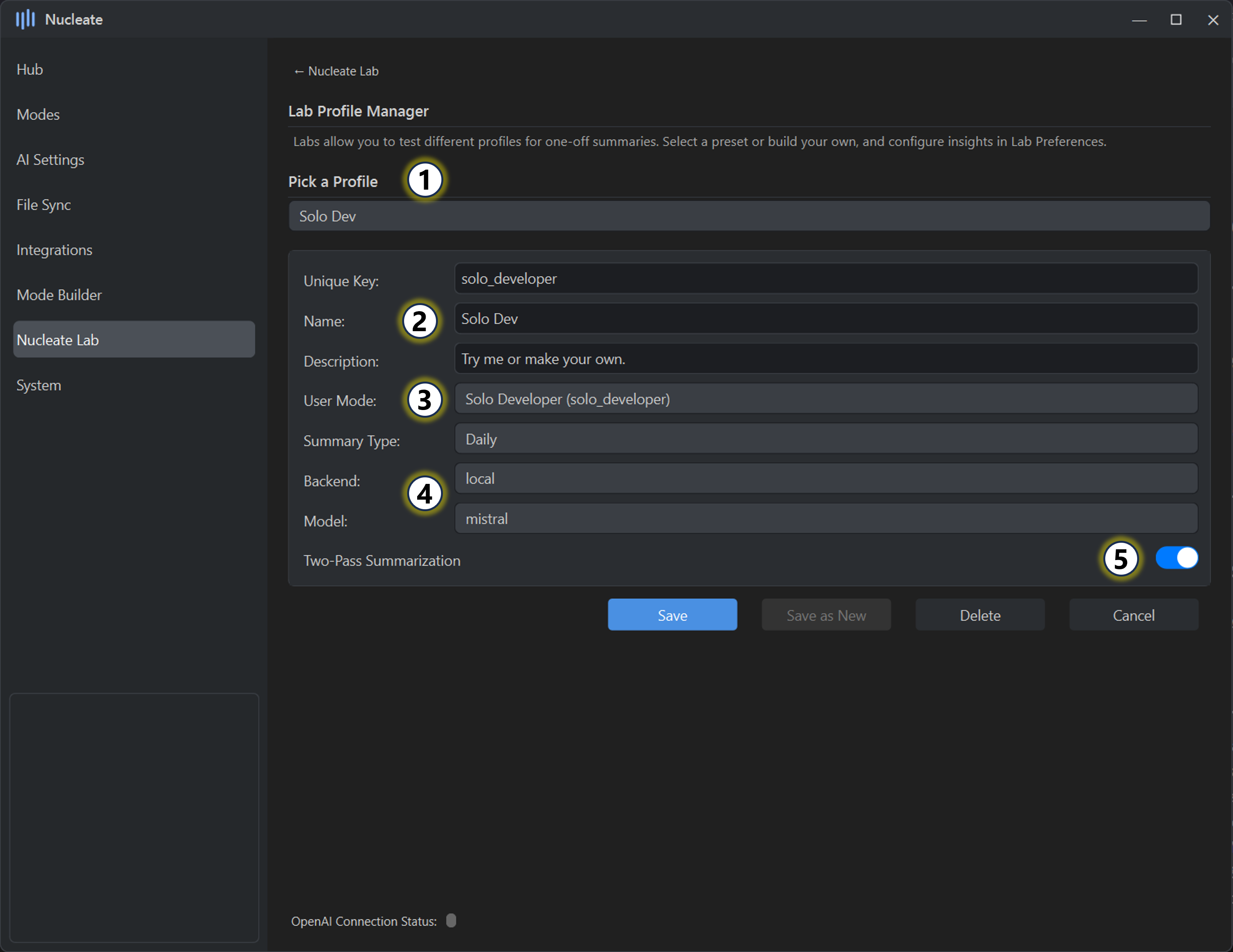
Lab Profiles
Select a Lab profile
Choose an existing Lab profile to view or modify its configuration.Define profile name and unique key
Each Lab profile requires a unique key in order to be saved. Existing profiles do not require the key to be changed.Choose parent mode and summary type
Select:- A parent User Mode (prebuilt or custom)
- A summary type: Daily, Weekly, or Monthly
The selected mode and summary type define the baseline prompting and structure used by this profile.
Select summarization backend and model
Choose between:- Local (Ollama) — models already downloaded to your machine
- OpenAI — preconfigured models, with the option to manually enter others Available options depend on the selected backend.
Toggle two-pass summarization
When enabled, content is first passed through a lightweight cleanup step before summarization.
This is recommended for Lab workflows that operate directly on raw transcripts or noisy input.
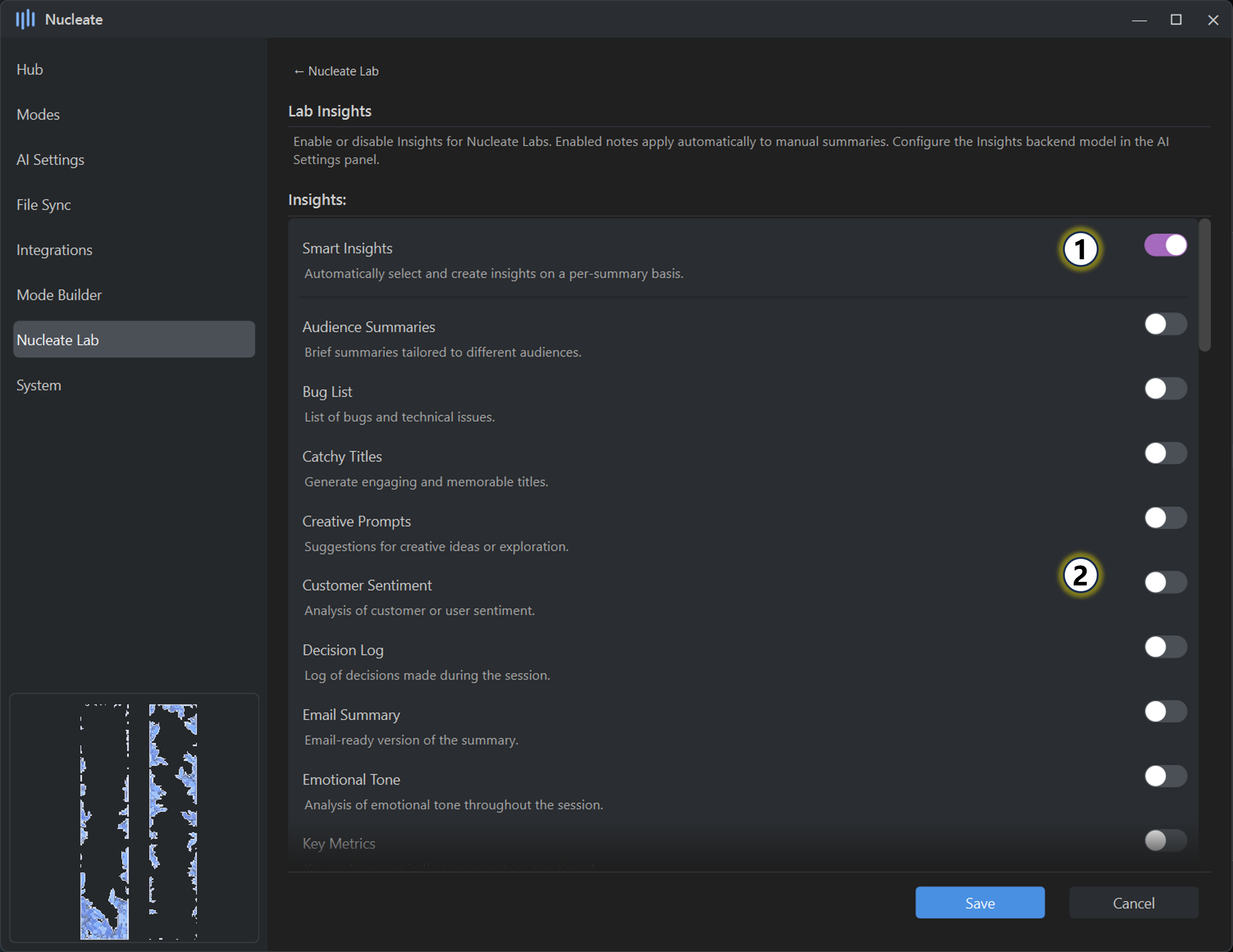
Lab Preferences & Insights
Favorite Insights
Favorited Insights appear at the top of the list for quick access.
Right-click an Insight to add or remove it from Favorites.Enable Insights for Lab content
Enables Insights for all Lab-generated output.- Smart Insights, when enabled, override all other Insight selections
- Tags and Transcript options remain enabled regardless of Smart Insights
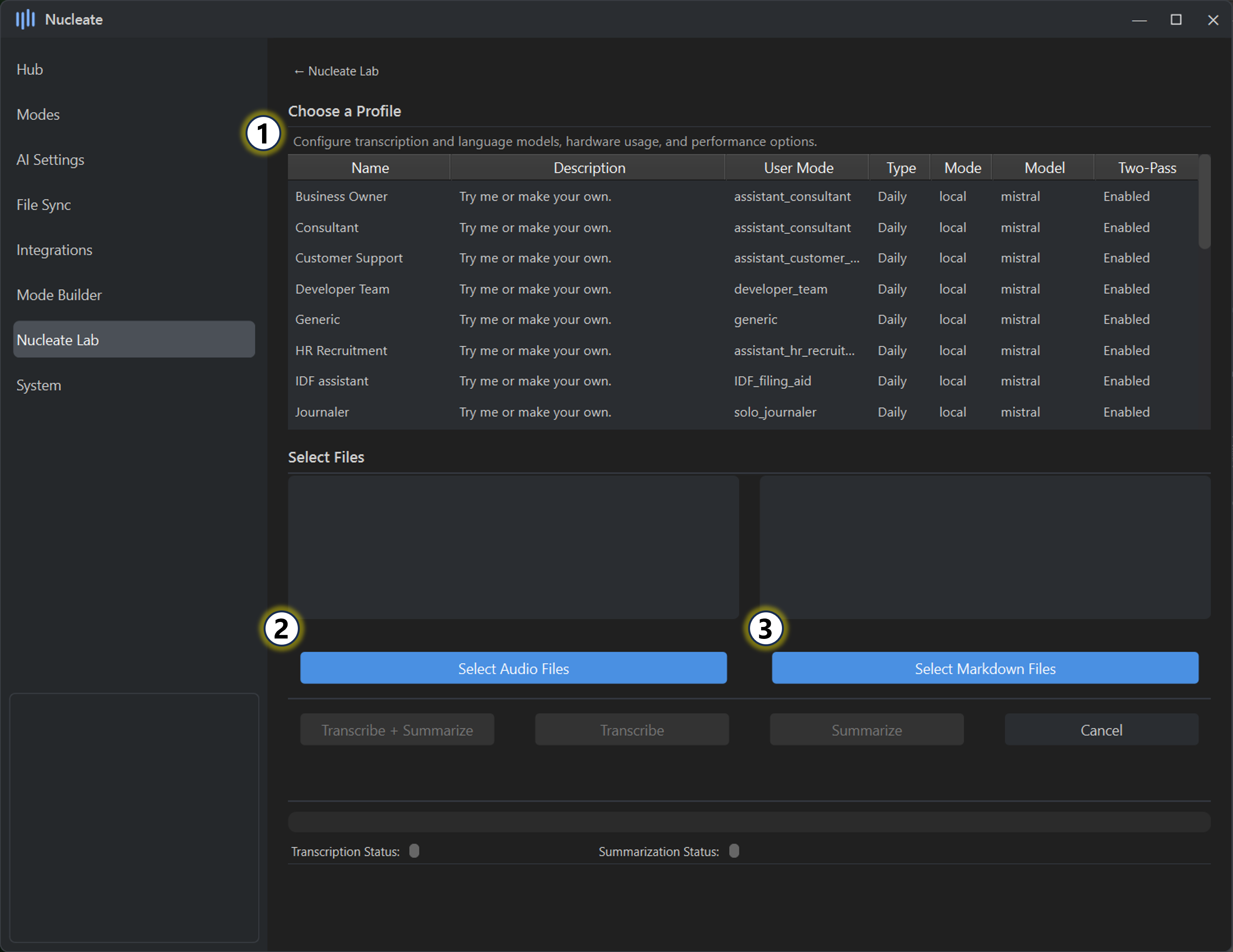
Lab Actions
Select a Lab profile
Choose one of the prefabricated or custom Lab profiles to use for processing.Process audio files
Select one or more audio files to:- Transcribe only (saving the transcript), or
- Transcribe and summarize using the selected Lab profile
This process is independent of the automatic Nucleate pipeline.
Process markdown files
Select one or more markdown files and summarize their contents using the selected Lab profile.
Notes & Intended Use
- Lab output does not modify existing summaries unless Autosync is explicitly enabled elsewhere
- Lab profiles are isolated from default User Modes and settings
- This space is intended for experimentation, testing, and non-standard workflows
System
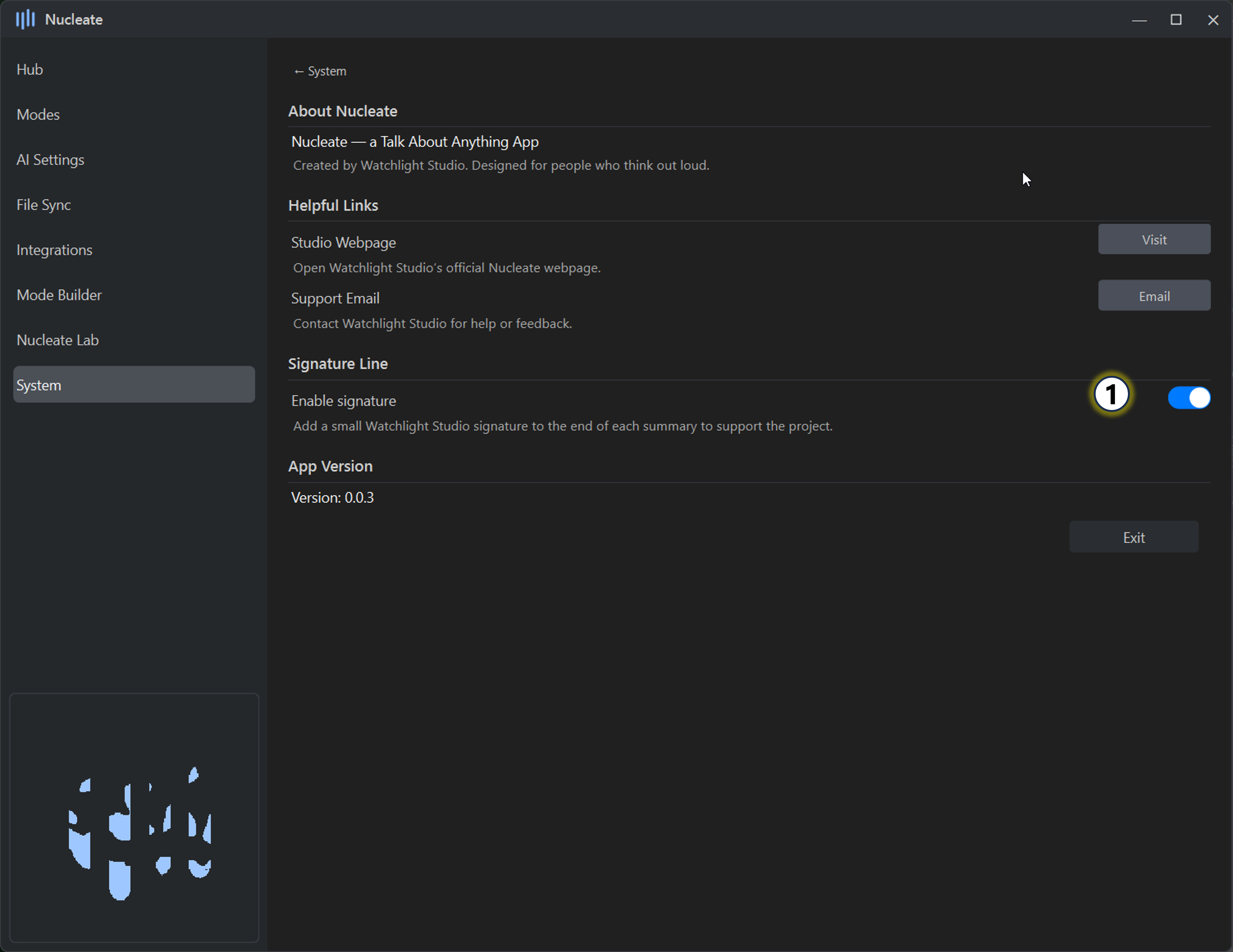
System Settings
Apply a signature to summaries, validate your license, and view detailed usage statistics. Reset stats when needed and ensure the app operates according to your preferred workflow.
- Signature line toggle
Enable or disable appending a signature line to the end of summaries generated by Nucleate.
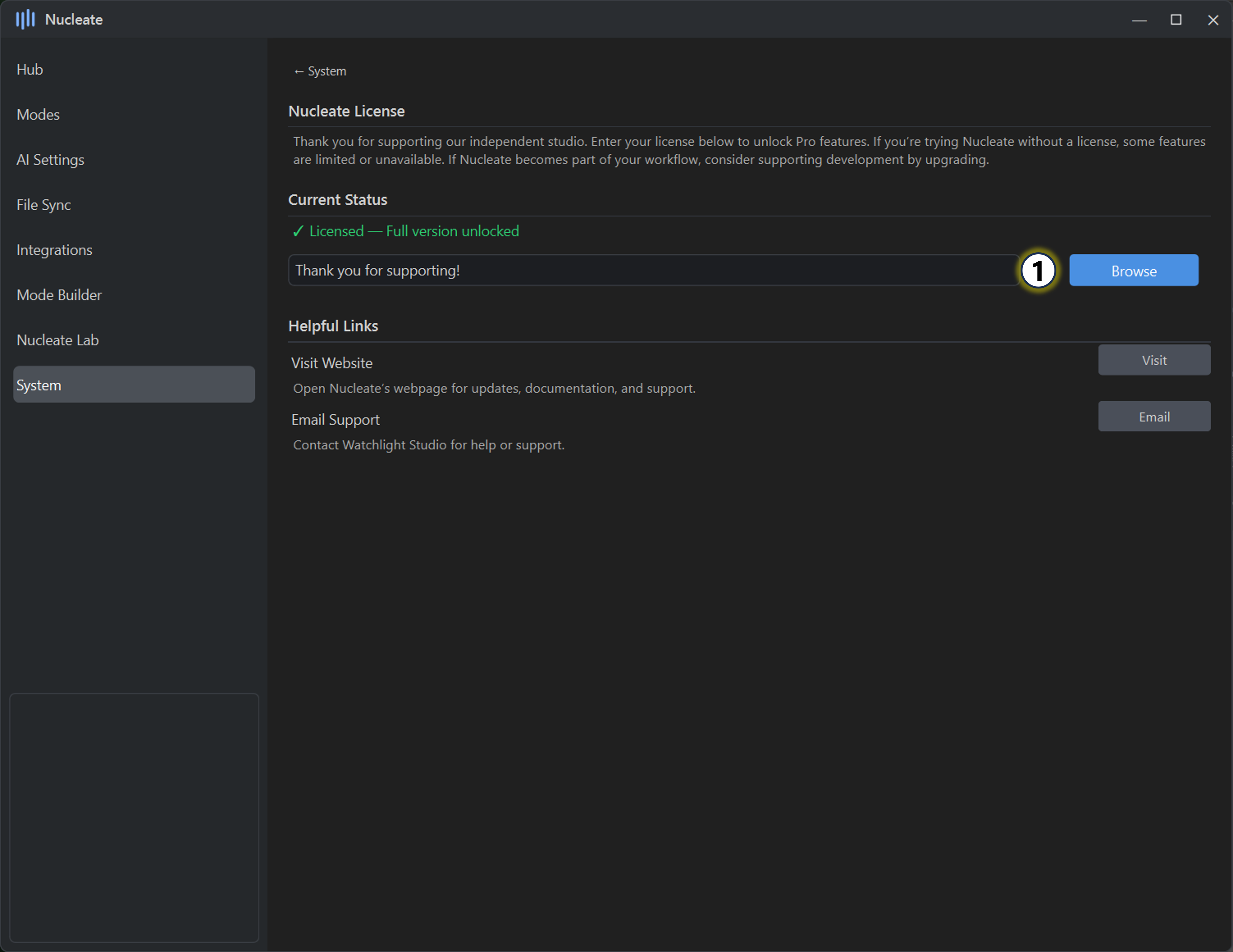
License Management
Validate Pro license
- If Nucleate Pro has been purchased, the app will automatically search common folders for a valid license.
- If a license is not detected, manually browse to select the license file. Once found, it will be validated automatically.
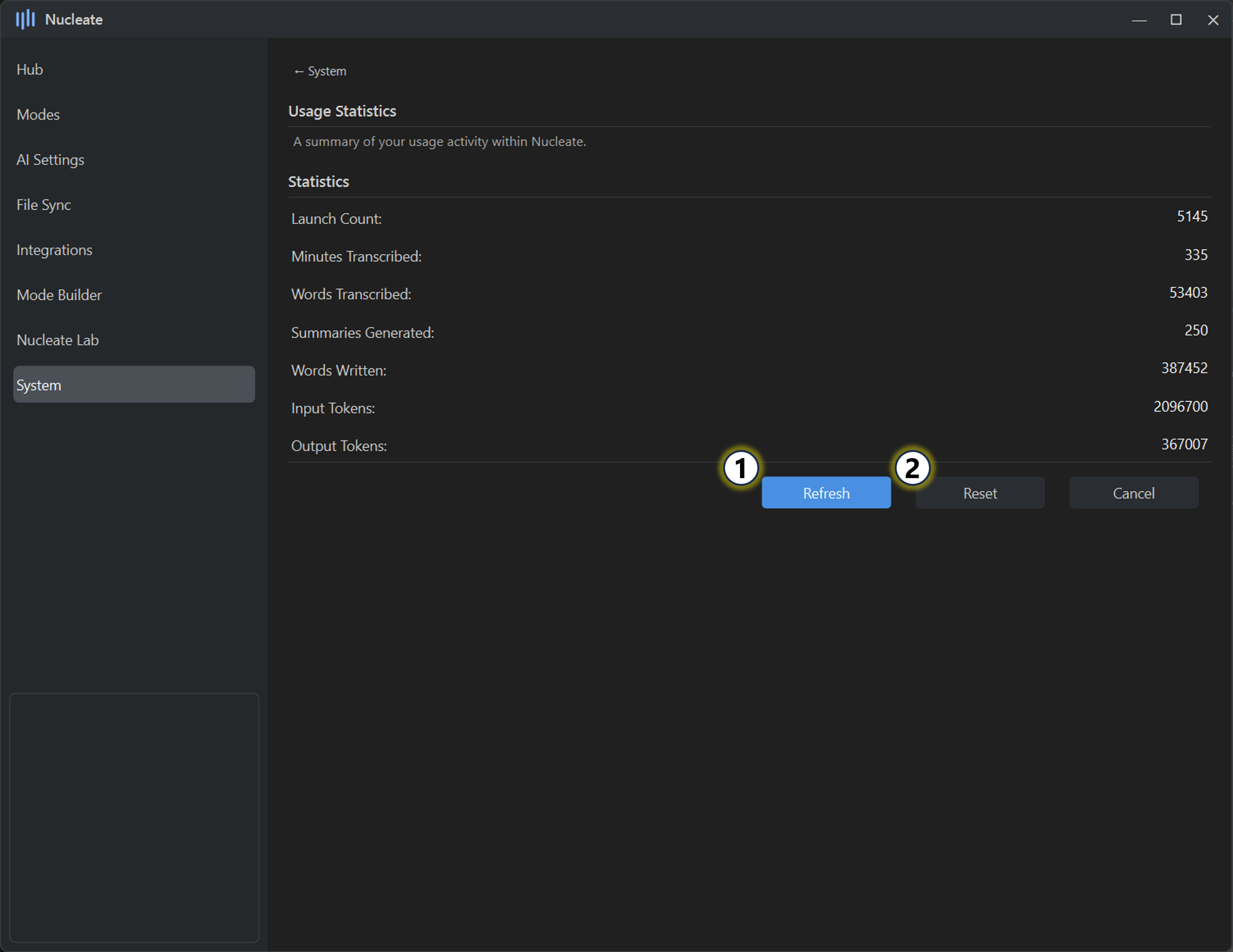
App Statistics
A lightweight panel that displays usage statistics and other app metrics.
Refresh statistics
Updates the values since the last app launch.Reset statistics
Clears all recorded usage data.⚠️This action is irreversible. Only reset if you are sure you want to discard all current statistics.
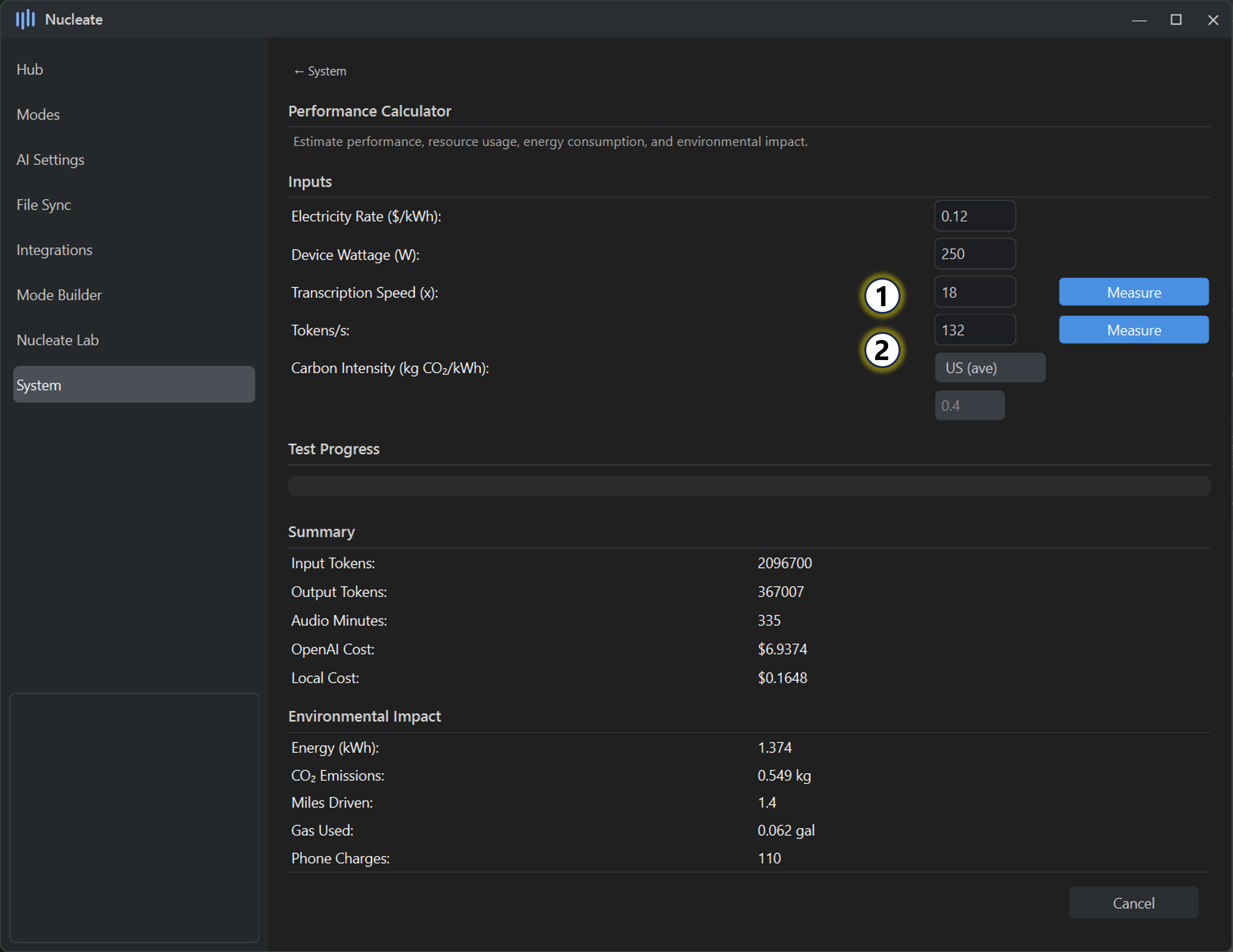
Performance Calculator
The Performance Calculator is an in-app benchmarking and cost estimation tool. It measures real transcription and summarization performance on your hardware and compares local compute costs against OpenAI usage.
What it measures
- Transcription speed as a multiplier relative to audio length
- Summarization speed in tokens per second (TPS)
- Estimated cost of local compute based on power usage and electricity cost
Transcription test
- Runs a short (~3 minute) internal audio file
- Measures total transcription time to calculate a speed multiplier
(e.g. 1 minute to transcribe 3 minutes of audio = 3×) - Running the test multiple times improves accuracy
ℹ️Transcription speed testing is unavailable when transcription services are set to OpenAI.Summarization test
- Uses the currently configured local Ollama model
- Measures tokens processed per second (TPS)
- The base model is cached automatically before measurement
ℹ️Summarization speed testing is unavailable when summarization services are set to OpenAI.
Cost estimation
- Uses selected hardware wattage and local electricity cost (per kWh)
- Combines:
- Total transcription minutes
- Total summarized tokens (from App Statistics)
- Produces a side-by-side comparison against OpenAI pricing